
How to set working hours, breaks and days off for your team
Bronjoy builds the free times clients see from working hours. No hours means no slots to book.
How it works
A schedule is made of availability slots. One slot is:
- a specialist,
- the service they do at that time,
- a start and end time,
- the weekdays it repeats on.
For example: "Aziz — Men's haircut — 09:00–13:00 — Mon–Fri". If the specialist does other services in the same hours, add a slot for each service.
Open the schedule
In the menu on the left, open Working Hours & Schedule. Slots appear on a calendar by day, week or month. The All staff filter shows one specialist's schedule.
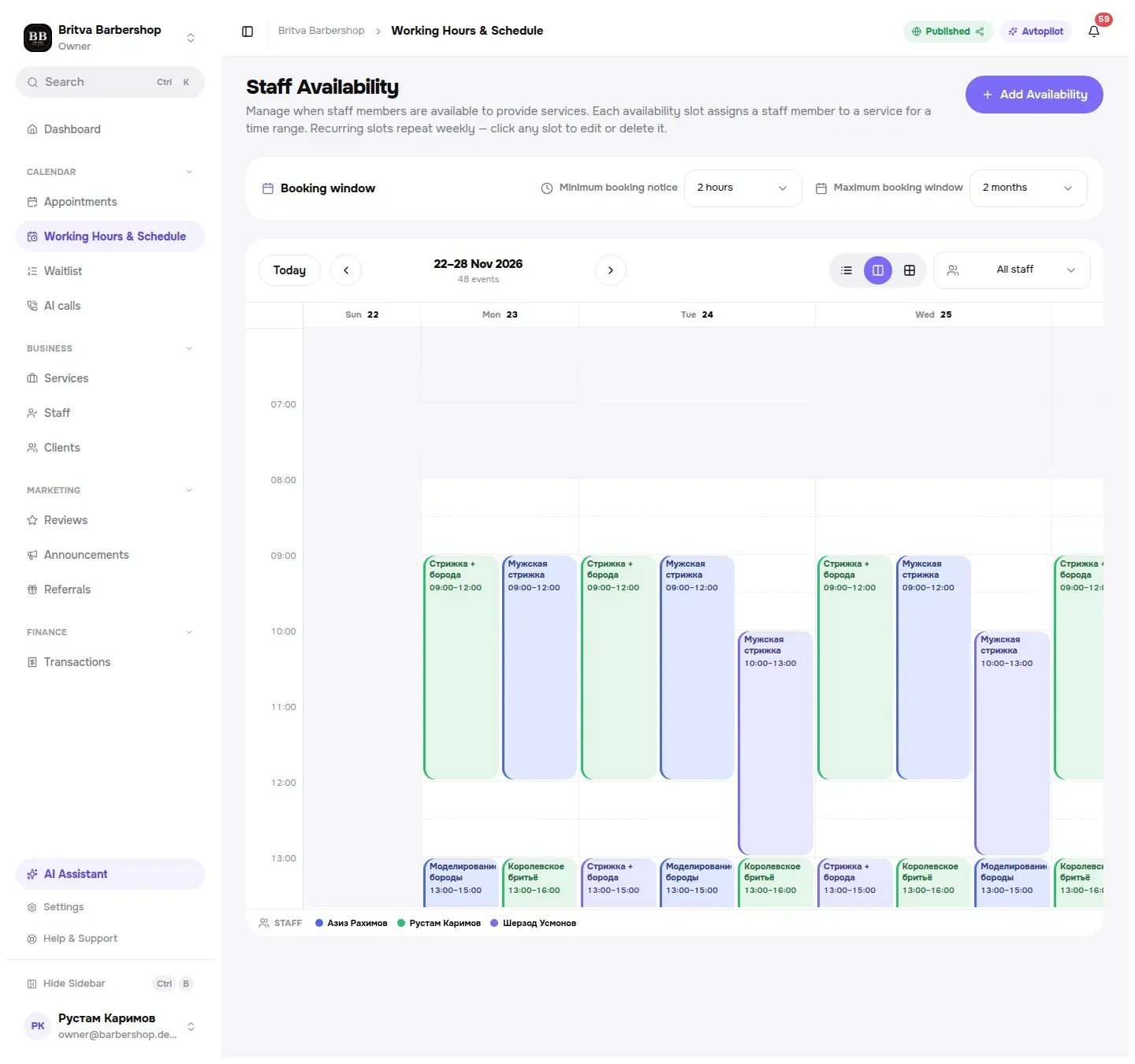
Add working hours
- Click Add Availability.
- Choose the Staff Member and the Service.
- Set the Start Time and End Time.
- Keep Recurring weekly schedule on and tick the days under Repeat on.
- Click Create.
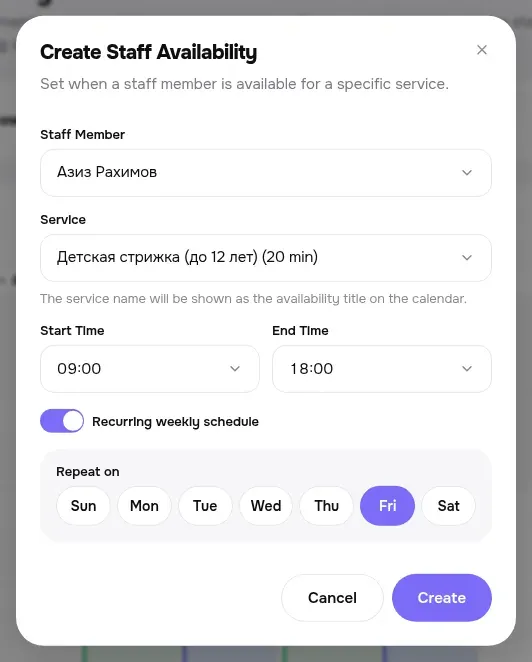
The slot repeats every week. To change or delete it, click it on the calendar.
A lunch break
There is no separate break setting: a break is a gap between slots. Make two slots instead of one, for example 09:00–13:00 and 14:00–19:00. Nobody can book that specialist from 13:00 to 14:00.
A day off or a holiday
- Click Add Availability and choose the specialist.
- Turn off Recurring weekly schedule.
- Pick the Date.
- Turn on Day off — not working this day.
- Click Create.
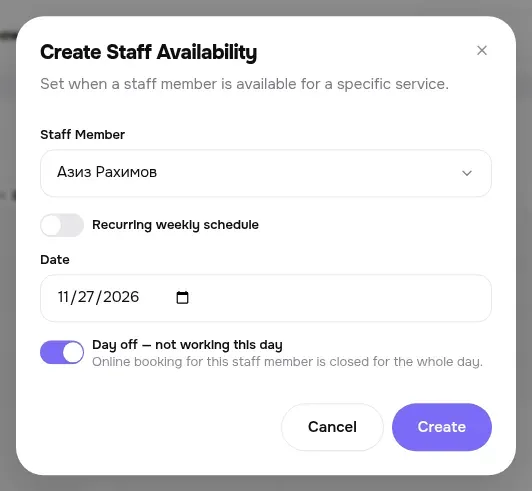
Online booking with that specialist closes for the whole day. For a holiday of several days, do this for each day.
If clients don't see free times
- The specialist has no slot for the chosen service — add a slot with that service.
- The specialist isn't ticked in Who performs it on the service. See Services and prices.
- The Booking Window is too strict, for example a minimum of 2 days' notice. See Booking rules.
- The page isn't published yet. See First-time setup.
How to add a specialist in Bronjoy and give them access
Add specialists and receptionists, choose their roles and services, and invite them by email or with an invite code.
Booking rules — how far ahead clients can book, cancel and reschedule
Set the minimum notice for a booking, how far ahead booking is open, and the deadline for clients to cancel or reschedule.