
For clients
How to reschedule or cancel a Bronjoy booking
Where to find your bookings, how to move one to another time, cancel it, add it to your calendar, and what to do once the cancellation deadline has passed.
Where are my bookings
- On a phone: the Bookings tab in the bottom menu.
- On a computer: My Appointments in the account menu, top right.
Bookings are split into three tabs: Upcoming, Past and Cancelled.
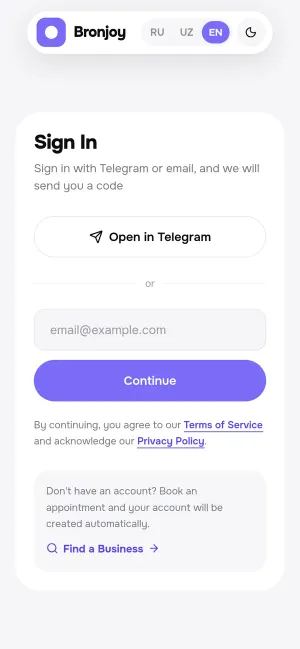
If the list is empty, you are probably not signed in. Open the sign-in page and sign in the same way you confirmed the booking:
- Open in Telegram — if you confirmed through Telegram;
- your email and Continue — a code arrives; enter it and tap Verify & Sign In.
Reschedule
- Open the booking and tap Reschedule.
- The service and the professional stay the same. Pick a new day and time.
- Tap Confirm new time.
The place is notified of the change.
Cancel
- Open the booking and tap Cancel.
- In the "Cancel this appointment?" dialog, tap Cancel booking. Changed your mind? Tap Keep booking.
You can also cancel without signing in:
- From the email — use the cancel link in the booking email. You can add a reason.
- From Telegram — tap ❌ Cancel Appointment under the booking message.
Cancellation and reschedule deadlines
Each place decides how late a booking can be cancelled or moved. You see the rule at the Details step, for example "Free cancellation up to 24h before your appointment".
Once the deadline has passed, the Reschedule and Cancel buttons disappear. Call the place instead — the phone number is on its page.
Add to your calendar
On an upcoming booking tap Add to calendar and choose Google, Outlook or Download .ics — the file opens in your phone's calendar.
After the visit
On the Past tab a booking has two buttons:
- Rebook — the same service at the same place;
- Review — see Favorites and reviews.