
Booking rules — how far ahead clients can book, cancel and reschedule
Booking rules protect you from "in 10 minutes" bookings and last-minute cancellations. They apply only to clients: you and your staff can book, cancel and reschedule at any time.
How far ahead, and how much notice
These settings are at the top of the Working Hours & Schedule page, in the Booking Window block.
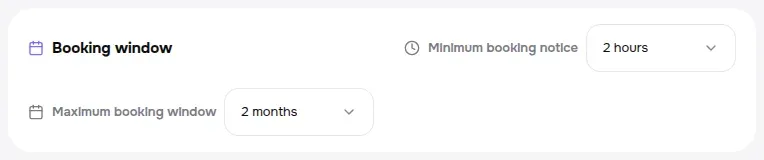
- Minimum notice required — how many hours before the start a client can still book. For example, "2 hours": at 15:00 a client won't see a 16:00 slot.
- Maximum booking window — how far ahead booking is open. For example, "2 months".
Choose the values and click Save Changes. You can still book a client by hand outside this window.
The deadline to cancel or reschedule
- Open Settings → Booking Policy.
- Under Cancellation Policy, choose the Minimum cancellation notice, for example "24 hours (1 day)".
- Under Reschedule Policy, choose the Minimum reschedule notice.
- Click Save Changes.
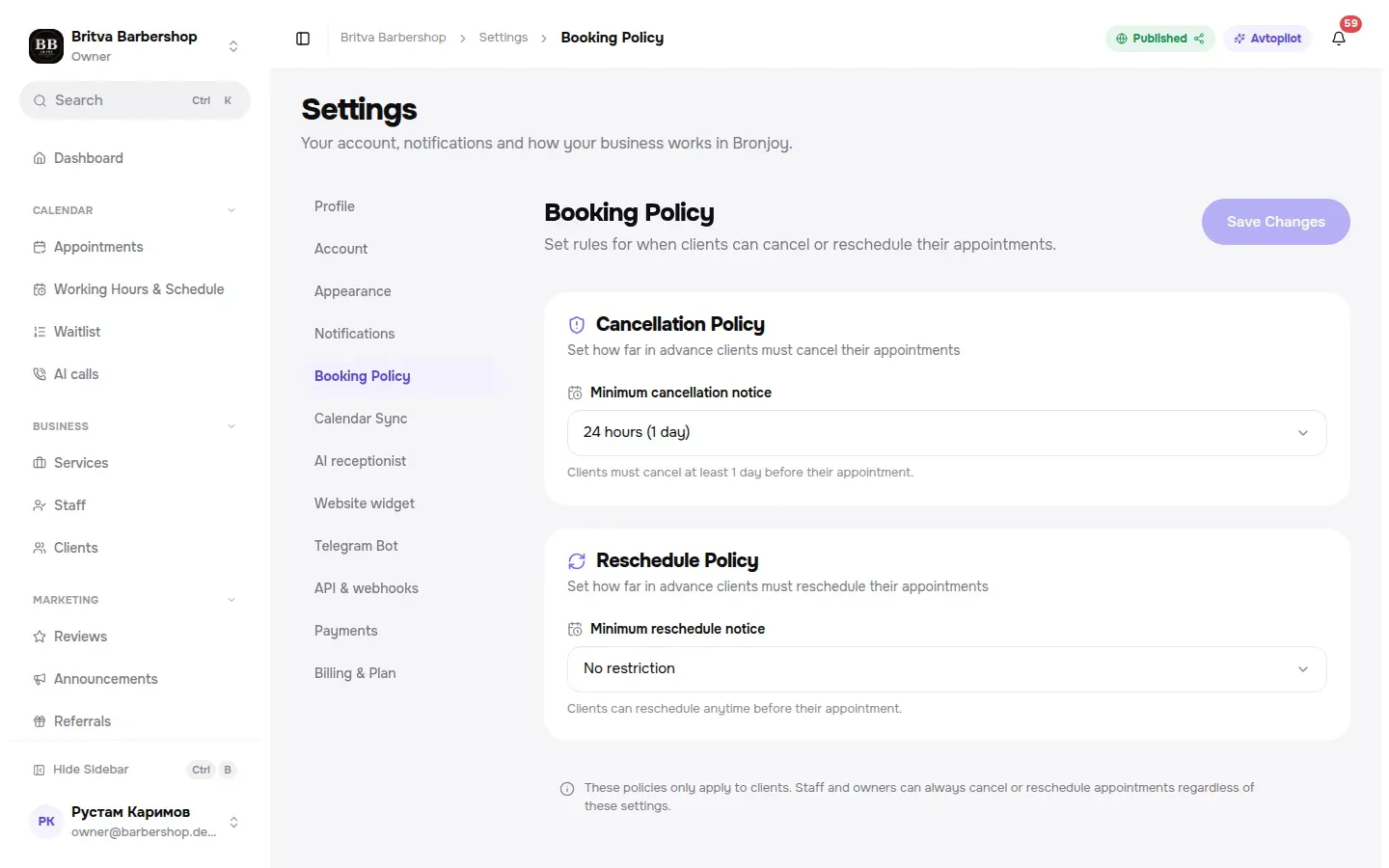
If less time than that is left before the visit, the client can't cancel or reschedule on their own and has to call you.
Confirming bookings
Every online booking arrives as Pending. Confirm it so the client gets a confirmation. If a client reschedules, the booking goes back to Pending. How to confirm: see Bookings.
How to set working hours, breaks and days off for your team
Set when each specialist sees clients, add a lunch break, and close booking for a day off or a holiday.
How clients book you online — link, QR code, website widget, Telegram
Where to get your booking page link, how to make a QR code for your counter, add a booking button to your website and take bookings through Telegram.