
Client reminders and team notifications in Bronjoy
Reminders cut no-shows, and notifications make sure you never miss a new booking. Everything is under Settings → Notifications.
What the client gets
| When | How |
|---|---|
| The client booked themselves | an email and a Telegram message that the booking was received |
| You confirmed, rescheduled or cancelled it | an email, an in-app notification, Telegram |
| Before the visit | a reminder by email, in Telegram and in the app |
| You booked the client as Pending | an email with a link to confirm |
Telegram messages arrive if the client booked through @bronjoy_bot and linked their account. The email reminder has a link to cancel the booking.
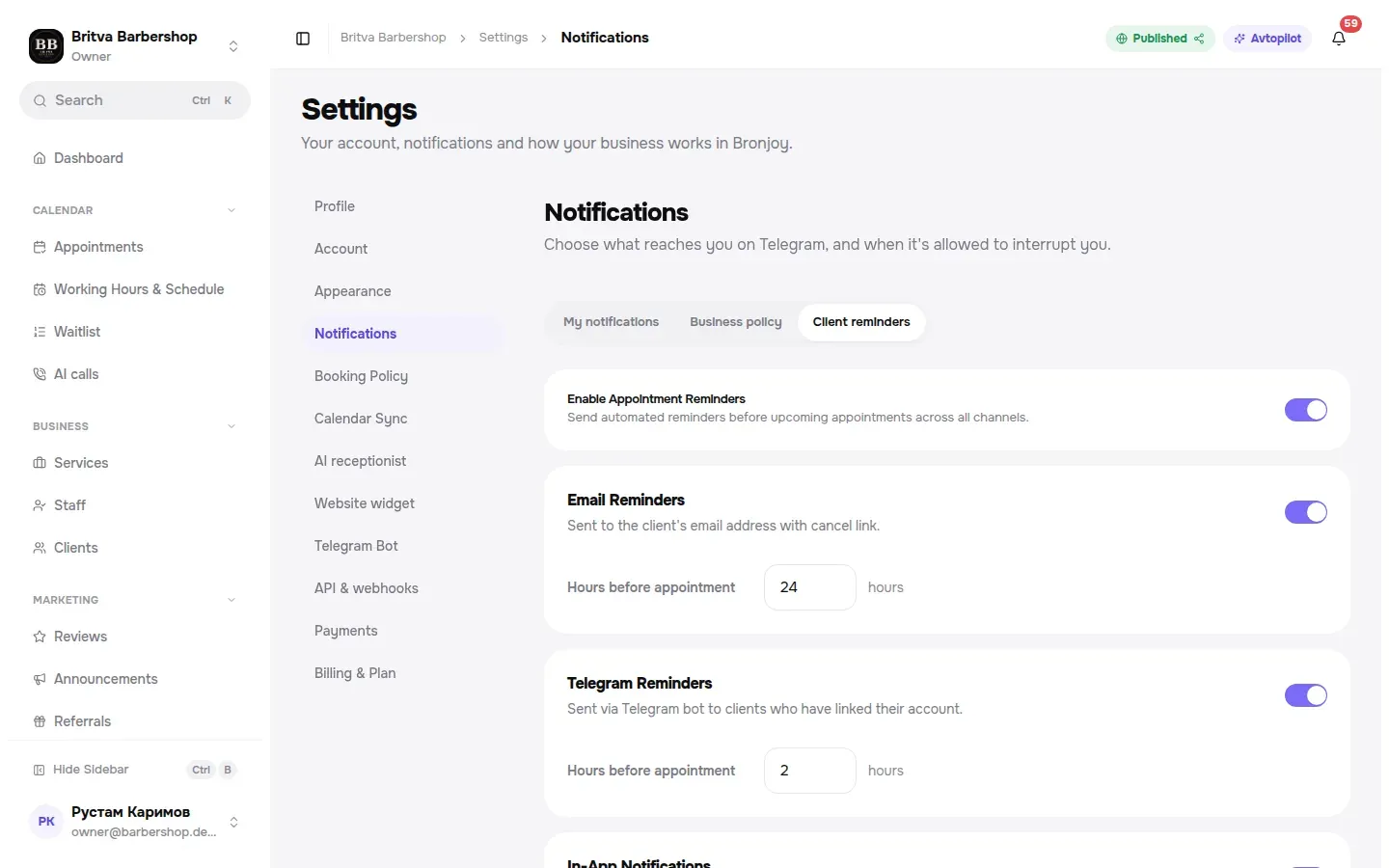
Set up client reminders
- Open Settings → Notifications.
- Go to the Client reminders tab.
- Check that Enable Appointment Reminders is on.
- For each channel, choose how many hours before the visit to send it (Hours before appointment):
- Email Reminders — for example, 24 hours;
- Telegram Reminders — for example, 2 hours;
- In-App Notifications.
- Staff Reminders — the specialist also gets a reminder about their client.
- Click Save Settings.
What reaches you and your team
New bookings, cancellations, reviews and summaries arrive in Telegram, in @bronjoy_biz_bot. How to connect it: see Telegram. Until Telegram is connected, you hear about new bookings by email and through the bell at the top of the dashboard.
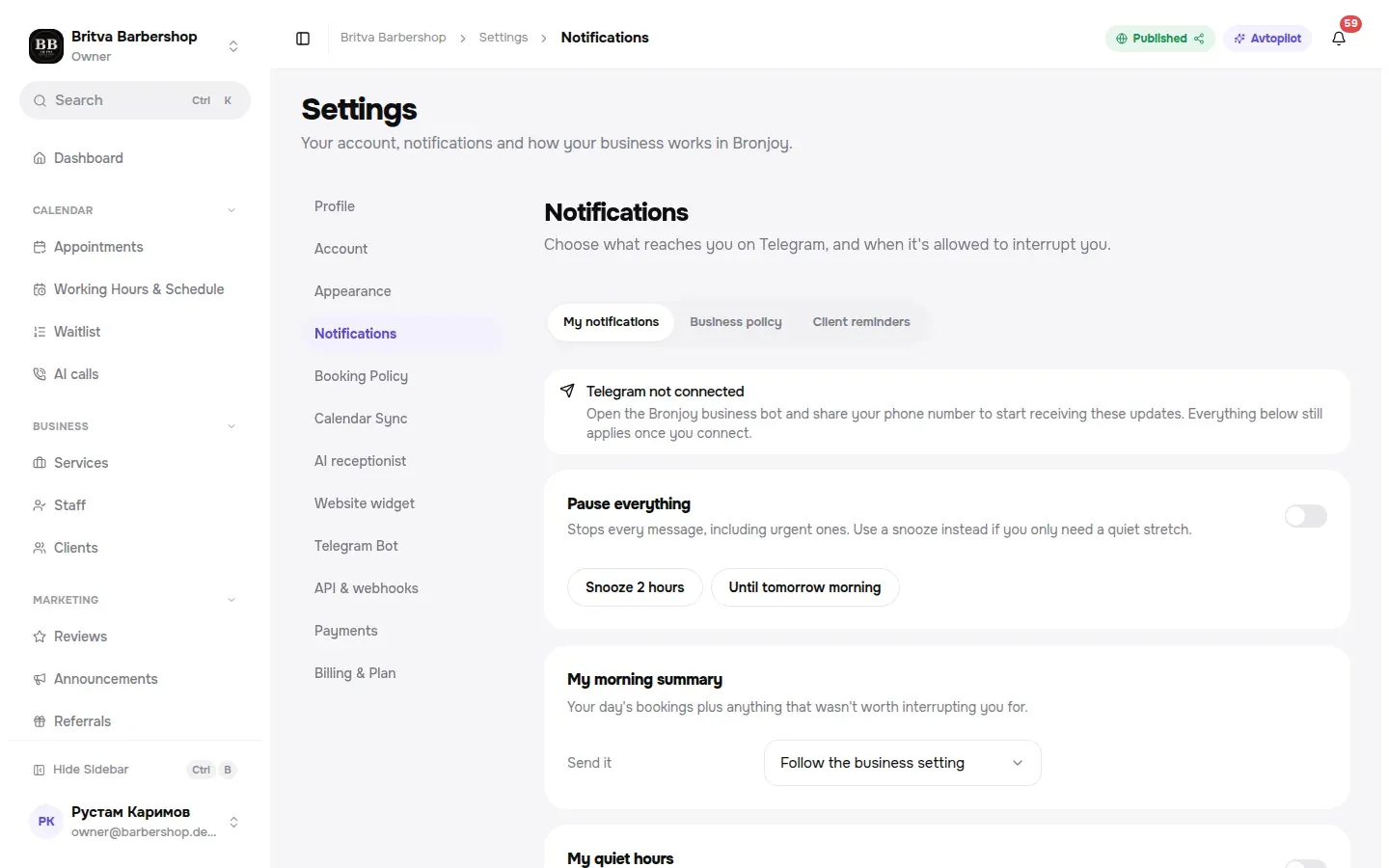
My notifications
Personal settings: each person has their own.
- Pause everything — complete silence. For a short break, use Snooze 2 hours or Until tomorrow morning.
- My morning summary — your bookings for the day in one message.
- My quiet hours — non-urgent messages wait until morning, urgent ones arrive at once.
Business policy
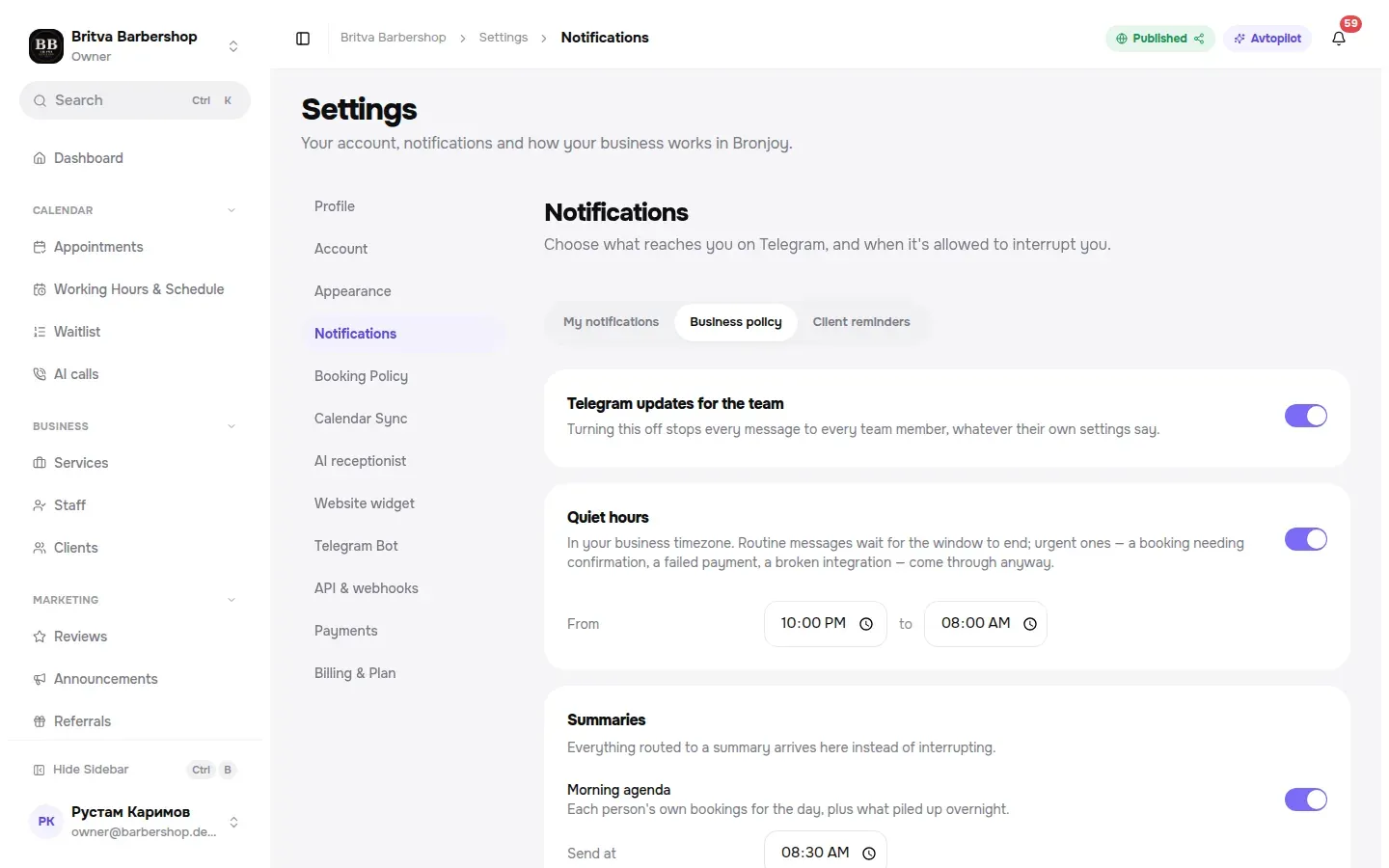
Only the owner sees these, and they apply to the whole team.
- Telegram updates for the team — the master switch.
- Quiet hours — for example, 22:00 to 08:00. Urgent things, like a booking that needs confirming, still come through.
- Summaries: Morning agenda, End-of-day summary and Weekly summary (the last two are for owners only).
- What the bot sends — which events to send: bookings, client messages, the waitlist, reviews and more.
Bookings in your own calendar
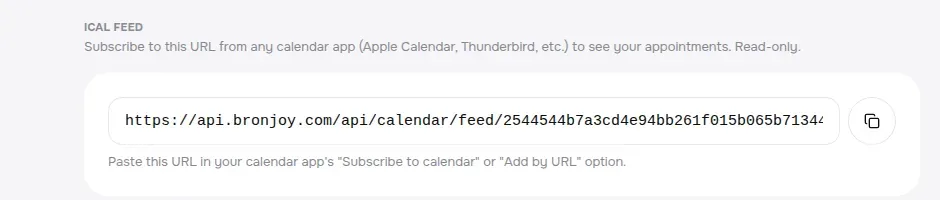
Want to see your bookings in your phone's calendar? Open Settings → Calendar Sync and copy the link from the iCal Feed block. Add it to Apple Calendar, Google Calendar or another app with "Add by URL" or "Subscribe to calendar". The calendar only shows bookings; you change them in Bronjoy.
The client base in Bronjoy — client card, visit history and notes
Where to find all your clients, how to add a client by hand, see their visit history and leave a note only your team can see.
Bronjoy in Telegram — client booking, the team bot and your own bot
How clients book through @bronjoy_bot, how to connect the team bot @bronjoy_biz_bot, and how to launch your own bot with your business name.