
How to add a specialist in Bronjoy and give them access
Add everyone who sees clients, so clients can choose who to book with. If you work alone you can skip this step: you are already on the list.
Add a specialist
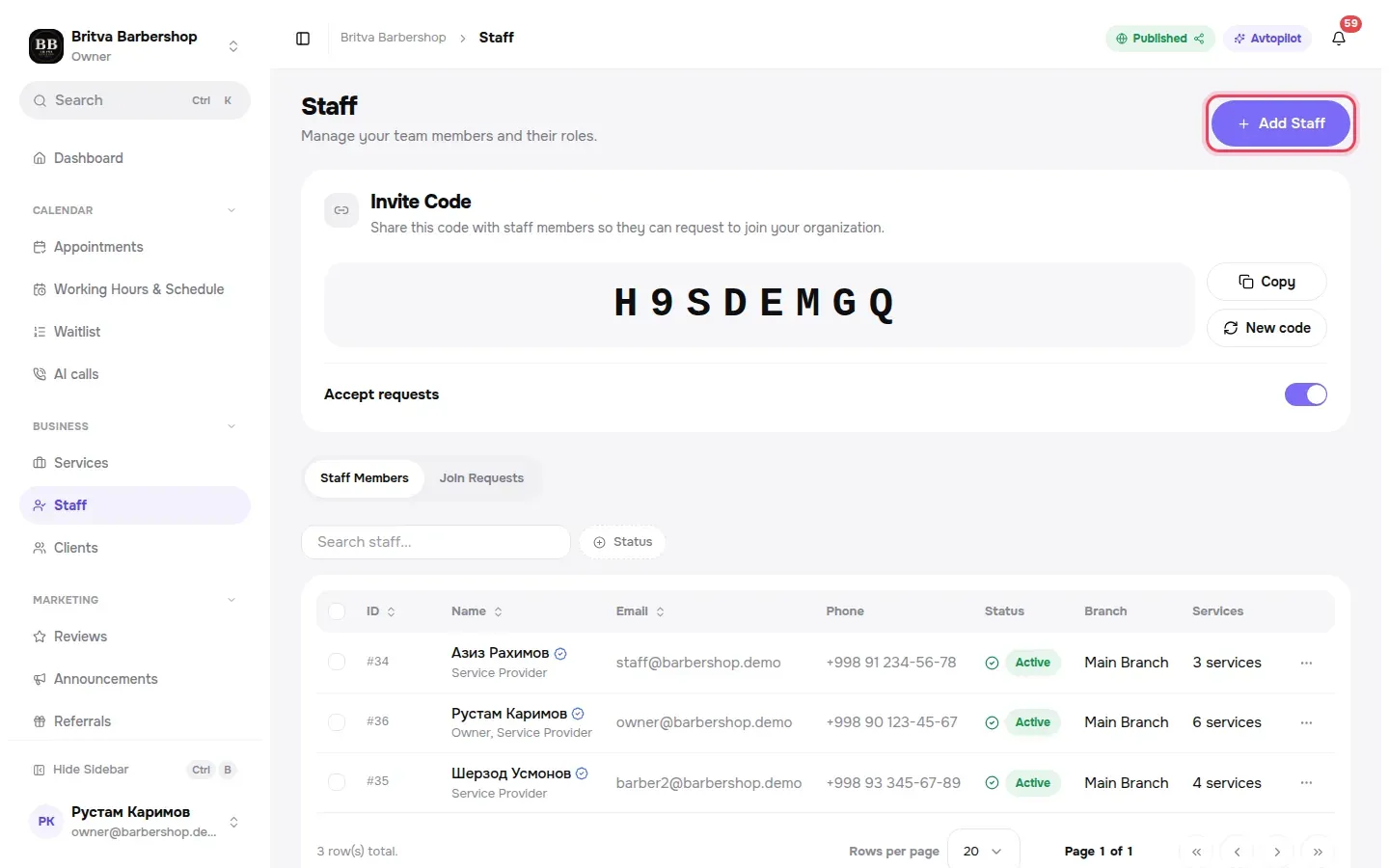
- In the menu on the left, open Staff.
- Click Add Staff.
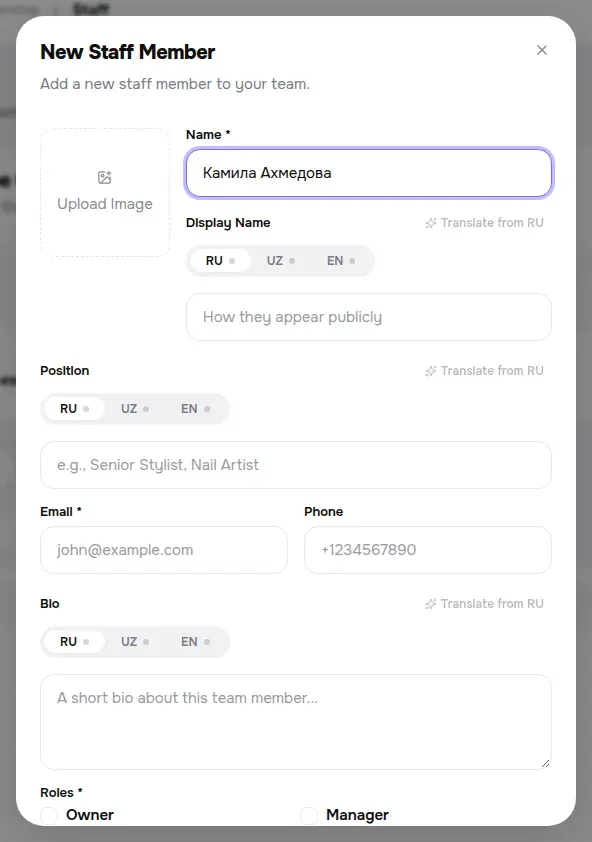
- Fill in the form:
- a photo — click the square on the left;
- Name — full name;
- Display Name — how clients see the name, for example "Aziz R.";
- Position — for example, "Senior barber" or "Nail technician";
- Email — the invitation goes here;
- Phone and Bio — optional;
- Roles — what this person can do (see below);
- Public Profile — whether to show them on the booking page.
- Click Create Staff.
The specialist gets an invitation email. To sign in, they open app.bronjoy.com, enter that email and the code from the email. No password needed.
Roles
| Role | What they can do |
|---|---|
| Owner | Everything: settings, plan, payments, finances. |
| Manager | Runs the team: bookings, services, staff, clients, reviews. No referrals or finances. |
| Receptionist | All bookings, clients and the waitlist. Can't change services, staff or settings. |
| Service Provider | Only their own bookings, schedule and clients. |
Invite with a code
If the specialist has already signed up on their own, joining with a code is easier.
- On the Staff page, copy the Invite Code and send it to the specialist.
- They sign in to Bronjoy, choose Join a team and enter the code.
- The request appears on the Join Requests tab. Click Approve and choose a role.
The Accept requests switch turns off joining by code. New code makes the old code stop working.
Which services a specialist performs
You choose a specialist's services in each service form, in Who performs it. See Services and prices. The Services column on the Staff page shows how many each person has.
When they work is set separately: Working hours, breaks and days off.
If someone leaves
Click ⋯ in their row and choose Deactivate. Clients can no longer book with them, and their visit history is kept.
How to add services and prices in Bronjoy
Add services with a price in so'm and a duration, choose who performs each one, and hide the ones you don't offer for now.
How to set working hours, breaks and days off for your team
Set when each specialist sees clients, add a lunch break, and close booking for a day off or a holiday.