
How to manage bookings from your phone
Everything on the computer works on the phone too. There's nothing to install.
Two ways to open the dashboard
- In the browser. Open app.bronjoy.com and sign in with a code. To open it in one tap, add the page to your home screen: in the browser menu choose "Add to Home Screen".
- In Telegram. Open @bronjoy_biz_bot and tap Open dashboard: the dashboard opens right inside Telegram, without signing in again. How to connect the bot: see Telegram.
The home screen
On the phone, the dashboard shows the same as on the computer: bookings to confirm, upcoming visits and your numbers. You confirm a booking with one button.
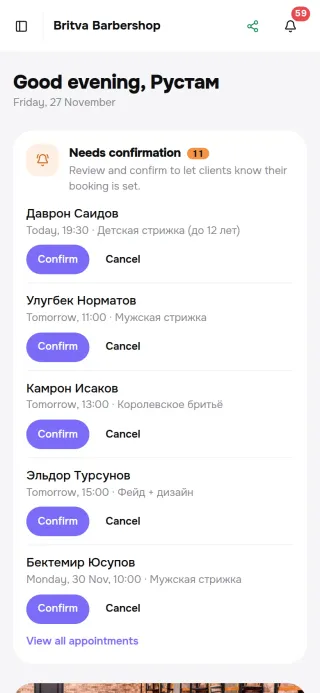
The menu
Tap the panel icon in the top left corner. The menu opens with every section: Appointments, Working Hours & Schedule, Services, Staff, Clients and more.
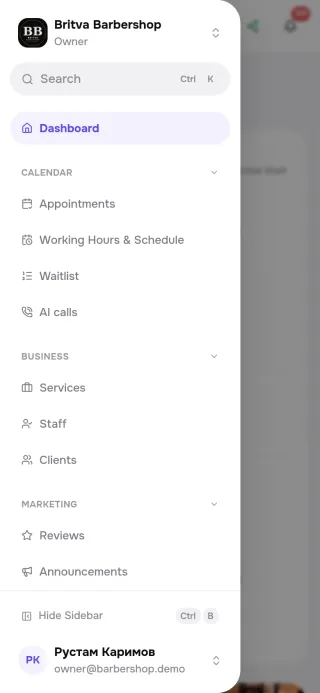
At the top right are the Share button (your page link and QR code) and the bell with notifications.
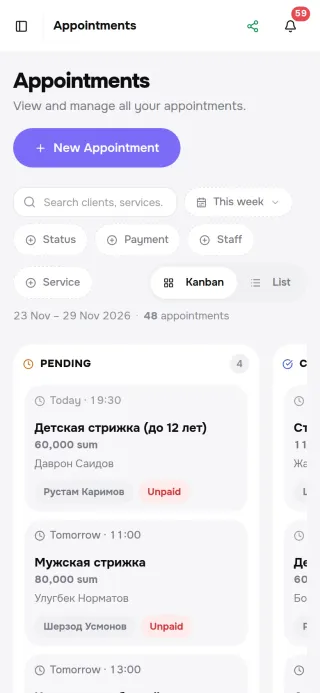
Bookings on the phone
Open Appointments. The Kanban board scrolls sideways; the List view is easier on a narrow screen.
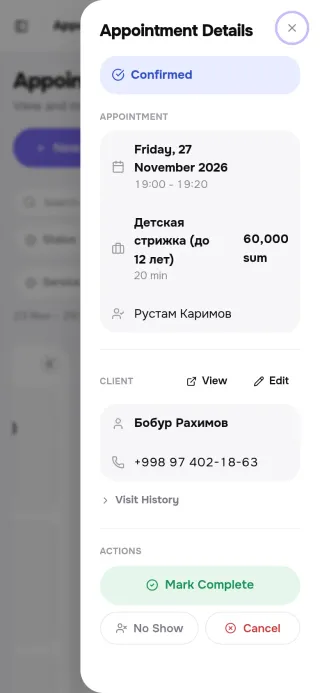
Tap a booking and its details open: the client's phone, visit history and the Mark Complete, No Show and Cancel buttons.
To book a client who's on the phone, tap New Appointment. See Bookings.
Bronjoy plans and paying for Avtopilot with Click
What's free on Spark, what Avtopilot adds for 149,000 so'm a month, how to pay with Click, extend your plan and add a branch.
Find and book
Step by step: find a salon, barbershop, clinic or specialist on bronjoy.com and book online from your phone — free, no phone call needed.