
The client base in Bronjoy — client card, visit history and notes
Bronjoy keeps your client base for you: everyone who books online lands in it with their phone and visit history.
The client list
Open Clients in the menu on the left. The table shows the name, phone, number of bookings, last visit and the date they joined.
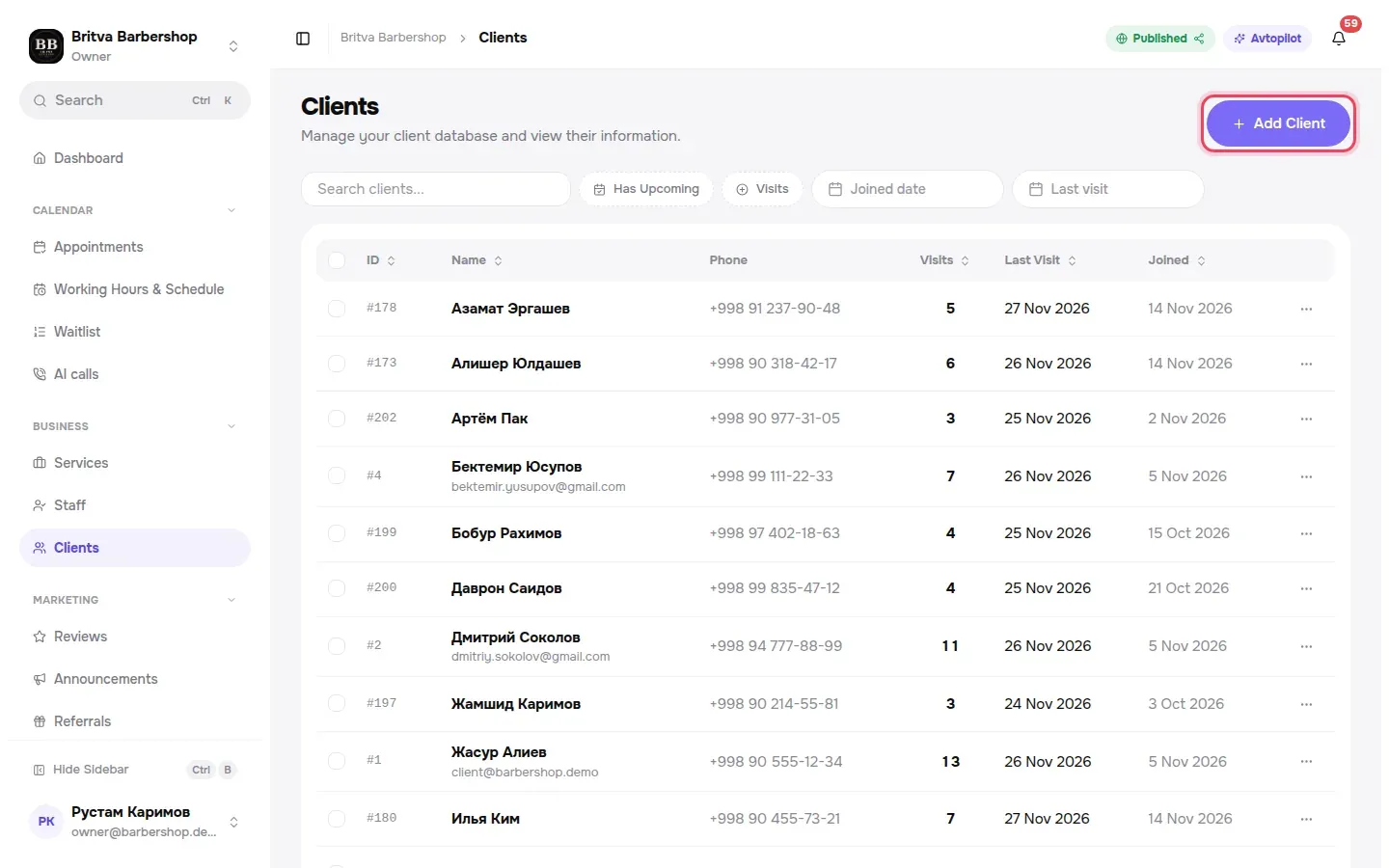
- Search by name, phone or email.
- Filters: Has Upcoming, Visits, Joined date, Last Visit.
- Click a column header to sort.
The client card
Click a client. The card shows:
- name, email and phone;
- Notes — for example, "likes short sides" or "allergic to aftershave". Only your team sees them, never the client;
- Recent Appointments — the visit history with statuses.
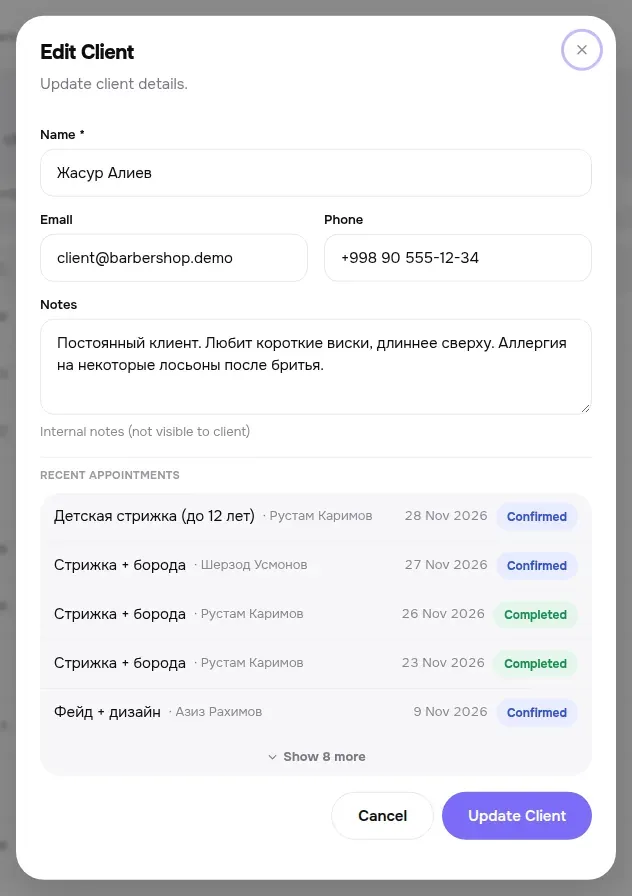
Change the details and click Update Client.
Add a client by hand
- Click Add Client.
- Enter the name and a phone number or email.
- Add a note if you like.
- Click Create Client.
You can also create a client while booking, in the New Appointment window. See Bookings.
Delete clients
Tick clients on the left and click Delete. This can't be undone.
Bookings in Bronjoy — confirm, reschedule, cancel and add a booking
All bookings on a board and in a list. Confirm online bookings, reschedule and cancel visits, book clients who call, and mark no-shows.
Client reminders and team notifications in Bronjoy
What messages clients get, how to set reminders before a visit, and what reaches you and your team in Telegram.