
How to add services and prices in Bronjoy
Services are what clients book. A client sees the name, price and duration before booking.
Add a service
- In the menu on the left, open Services.
- Click Add Service.
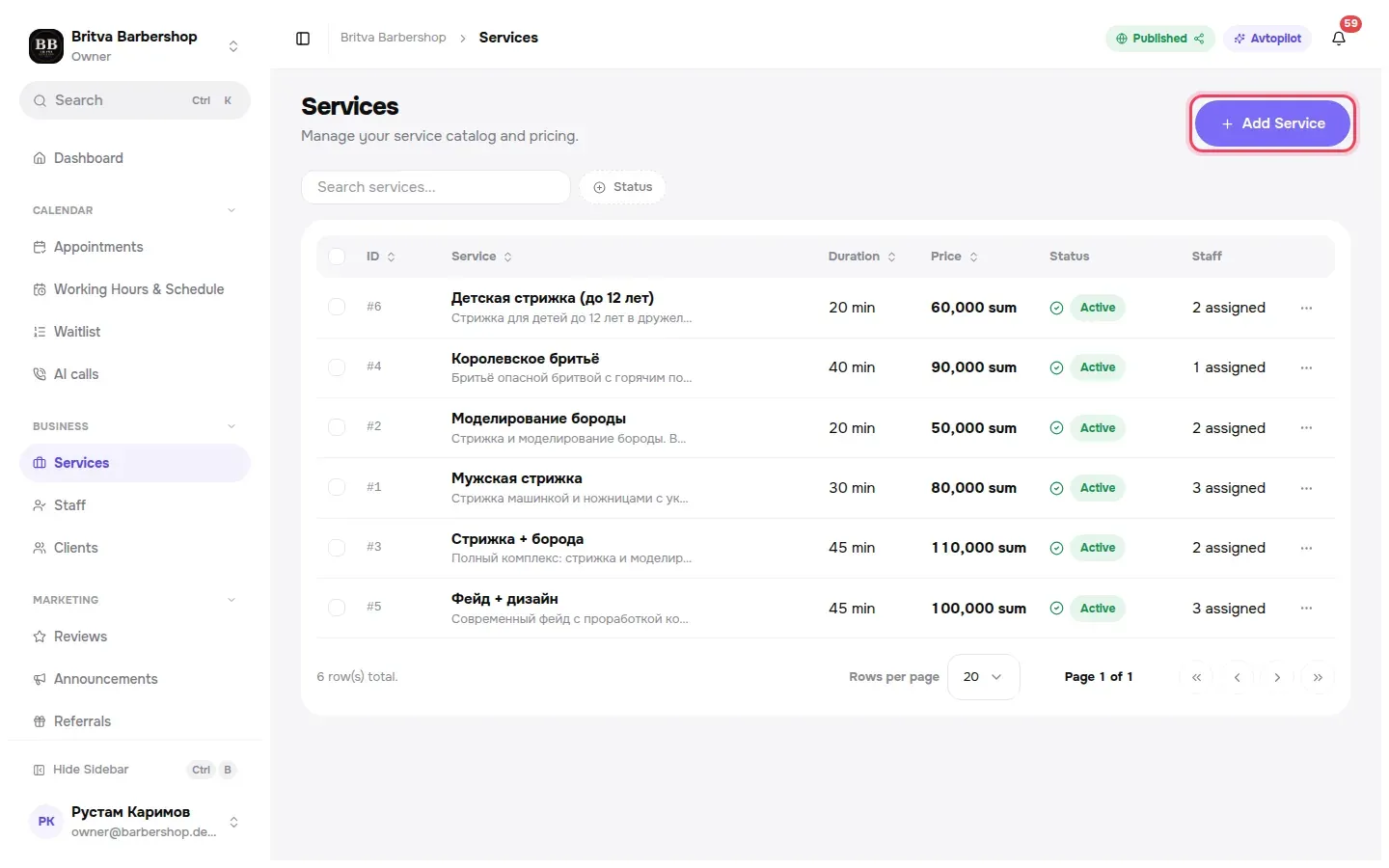
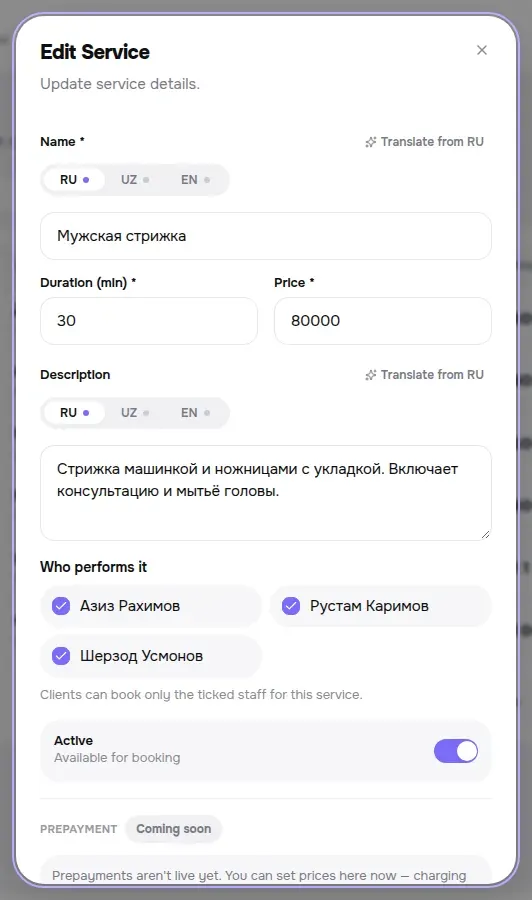
- Fill in the form:
- Name — for example, "Men's haircut". The RU / UZ / EN tabs are translations of the name. Translate from RU fills in the other languages.
- Duration (min) — how long the service takes, at least 5 minutes. It decides which time slots clients see.
- Price — in so'm, for example
80000. - Description — optional: what's included.
- Who performs it — tick the specialists. Clients can book the service only with the ticked people.
- Active — on means the service can be booked.
- Click Create Service.
Change a price or duration
Click the service in the list, change the fields and click Update Service. The new price appears on your booking page at once. Existing bookings keep the price they were made at.
Hide a service for now
Click ⋯ in the service row and choose Deactivate. The service disappears from the booking page but stays in your history. To bring it back, choose Activate.
If a service doesn't show on the booking page
Check three things:
- The service is Active.
- At least one specialist is ticked in Who performs it.
- That specialist has working hours for this exact service. See Working hours, breaks and days off.
Next
How to take over your business from the Bronjoy catalogue
Your salon or barbershop is already on bronjoy.com? Take over the page in a couple of minutes and confirm ownership in Telegram or with a document.
How to add a specialist in Bronjoy and give them access
Add specialists and receptionists, choose their roles and services, and invite them by email or with an invite code.