
For Owners
The waitlist in Bronjoy — filling freed-up times
Turn on the waitlist so clients can queue when you're fully booked, and offer them a time when someone cancels.
When every time is taken, a client can join the waitlist. If someone cancels, you offer the freed-up time to the next person in line.
Turn on the waitlist
- Open Waitlist in the menu on the left.
- Click Enable Waitlist.
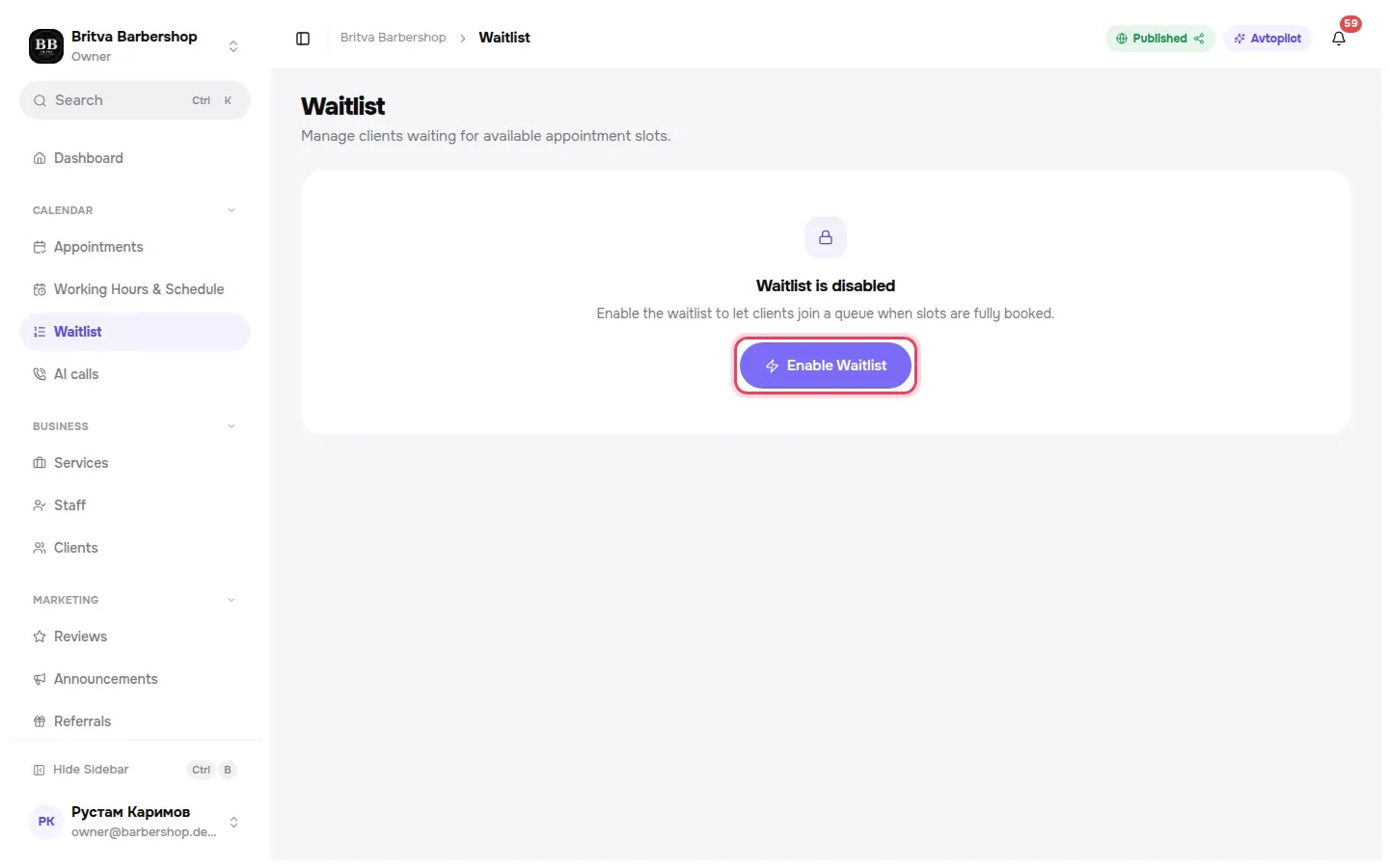
From now on, clients can join the queue on your booking page when the day they want has no free times.
Add a client by hand
A client called and there are no free times:
- Click Add to Waitlist.
- Choose the Client and the Service, and a specialist if they have a preference.
- Set the Preferred Date and Time Preference: Morning, Afternoon, Evening or Any time.
- Click Add to Waitlist.
Offer a time
- In the client's row, click ⋯ → Offer Slot.
- Choose a time.
- Click Send Offer.
The client gets the offer and can accept it within the Acceptance Window. If they accept, the booking is created.
Statuses on the list: Waiting, Offered, Booked, Expired, Cancelled.
Automatic offers
The Settings button on the waitlist page:
- Auto-Promote — when a booking is cancelled, Bronjoy offers the time to the next person in line on its own.
- Acceptance Window — how many hours the client has to accept an offer.
You can also turn the waitlist off there.